Automating Trades from TradingView Indicator Alerts with OctoBot
Summary
This guide explains how to route TradingView indicator alerts to OctoBot so the bot can act on incoming signals. The setup involves creating an alert in TradingView, configuring it to send a message to OctoBot's webhook, and defining the alert message in the format OctoBot expects. The webhook address is available through OctoBot configuration or startup logs, and webhook services are started only when a related trading mode or component is enabled.
The document is an integration walkthrough, not a trading strategy: it does not specify which indicators to use, how to validate signals, or how trades should be sized. It provides no backtest, execution results, or evidence that automated signals are profitable. The instructions point readers to separate documentation for alert formatting and the broader TradingView integration, so the exact message schema and full configuration details are not included here. Successful operation therefore depends on configuring the connected components and alert payload correctly.
Key ideas
- TradingView indicator alerts can be sent to OctoBot through a configured webhook.
- The user must create an alert, enter the webhook destination, and provide a compatible alert message.
- OctoBot exposes its webhook address through configuration or startup logs.
- A related OctoBot trading mode must be enabled for the webhook service to start.
- The guide covers signal routing and setup, but does not establish strategy performance or profitability.
Tags
Full text
# Automating trading from a TradingView indicator --- title: "Trading from indicators" description: "Learn how to make OctoBot trade based on TradingView indicators. Send signals from TradingView Pine Script indicator and have your OctoBot instantly trade on your exchange." sidebar_position: 1 --- # Automating trading from a TradingView indicator With OctoBot, you can listen to <a href="https://www.tradingview.com/?aff_id=27595" rel="nofollow">TradingView</a> indicator signals to automate your trades. ## Create an indicator alert - Go to the right menu and click on the alert button 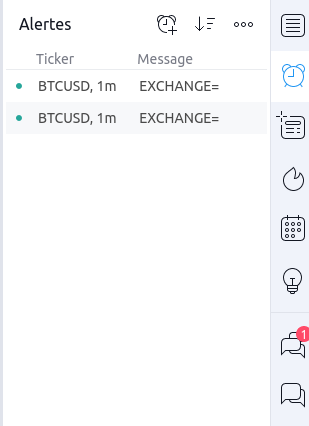 - Create a new alert with  you want - Add your OctoBot [webhook](using-a-webhook) as the following screenshot. 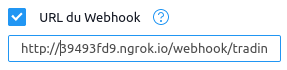 You will find OctoBot's alert webhook URL on your OctoBot's configuration page or in OctoBot's starting logs. It should be an url like `https://webhook.octobot.cloud/tradingview/xxxx` or `http://XXXXXXXX.ngrok.io/webhook/trading_view`. WARNING: To improve performances, webhooks are started only when required, this means that **you need to activate a webhook related tentacle to get the webhook url** (a tentacle such as the **trading view signals trading mode**)   - Set the alert message ## Alert format Learn more about how to create your TradingView alerts on [the TradingView alert format guide](alert-format). ## TradingView setup Wondering how to make your OctoBot listen to TradingView signals? Check out [our TradingView integration guide](/guides/octobot-interfaces/tradingview).
Shown in full with attribution under the source's licence. Licence: GPL-3.0
This summary was written by Stratmill's research agent from the original; it is not a copy of the source.