Recording Live Tick and One-Minute Bar Data for Trading Systems
Summary
The document explains how to use VeighNa’s DataRecorder module to save live market data to a database. Recorded ticks and one-minute bars can later be viewed in DataManager, used for historical backtests, or supplied to trading strategies during live initialization. The guide describes enabling the module in VeighNa Station or adding it through a startup script, then launching it after connecting a trading interface and receiving contract information.
Users create separate recording tasks for a contract’s ticks or bars by entering its local symbol and choosing a batch write interval. The module drains queued data and writes it in batches, a design intended to reduce database pressure and recording delay. Tasks can also be removed through the interface. A practical caveat is that some interfaces may not automatically provide all contract details: the document specifically notes that Interactive Brokers users must first manually subscribe to market data for the desired contracts. The guide covers setup and operation, but gives no performance measurements or assessment of data quality.
Key ideas
- DataRecorder stores live tick and one-minute bar data in a database for later use.
- Recorded data can support historical backtests and strategy initialization.
- Recording tasks are added separately for ticks and bars using a contract’s local symbol.
- Batching queued writes is intended to reduce database pressure and recording delay.
- Some interfaces require users to subscribe to contract market data before starting the recorder.
Tags
Full text
# DataRecorder - 实盘行情记录模块 # DataRecorder - 实盘行情记录模块 DataRecorder是用于**实盘行情记录**的模块,用户可以利用该模块记录实时Tick数据和K线数据,并自动写入保存到数据库中。 记录的数据可以通过DataManager模块查看,也可以用于CtaBacktester的历史回测,以及CtaStrategy、PortfolioStrategy等策略的实盘初始化。 ## 加载启动 ### VeighNa Station加载 启动登录VeighNa Station后,点击【交易】按钮,在配置对话框中的【应用模块】栏勾选【DataRecorder】。 ### 脚本加载 在启动脚本中添加如下代码: ```python3 # 写在顶部 from vnpy_datarecorder import DataRecorderApp # 写在创建main_engine对象后 main_engine.add_app(DataRecorderApp) ``` ## 启动模块 在启动模块之前,请先连接交易接口(连接方法详见基本使用篇的连接接口部分),看到VeighNa Trader主界面【日志栏】输出“合约信息查询成功”之后再启动模块,如下图所示: 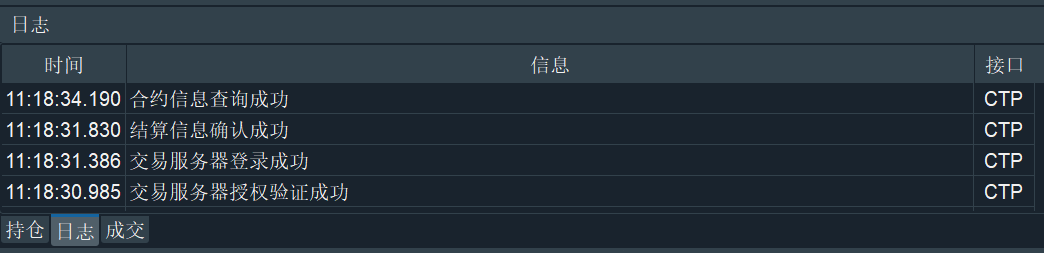 请注意,IB接口因为登录时无法自动获取所有的合约信息,只有在用户手动订阅行情时才能获取。因此需要在主界面上先行手动订阅合约行情,再启动模块。 成功连接交易接口后,在菜单栏中点击【功能】-> 【行情记录】,或者点击左侧按钮栏的图标:  即可启动DataRecorder,并弹出DataRecorder的UI界面,如下图所示: 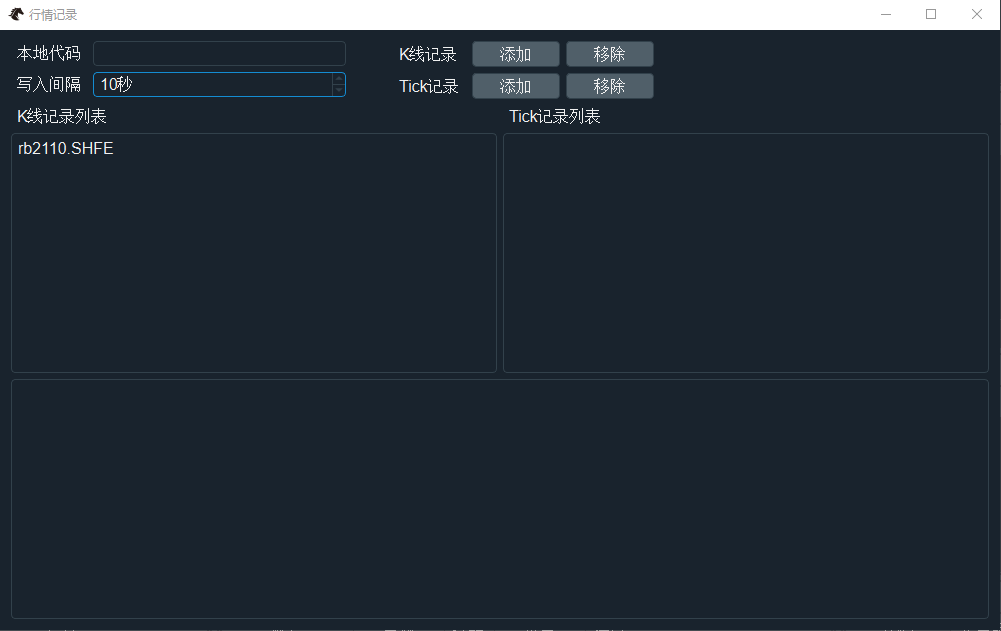 ## 添加记录 DataRecorder模块支持按需添加K线(1分钟)和Tick数据的记录任务: 1. 在【本地代码】编辑框中输入需要录制的合约本地代码(vt_symbol),如下图所示: 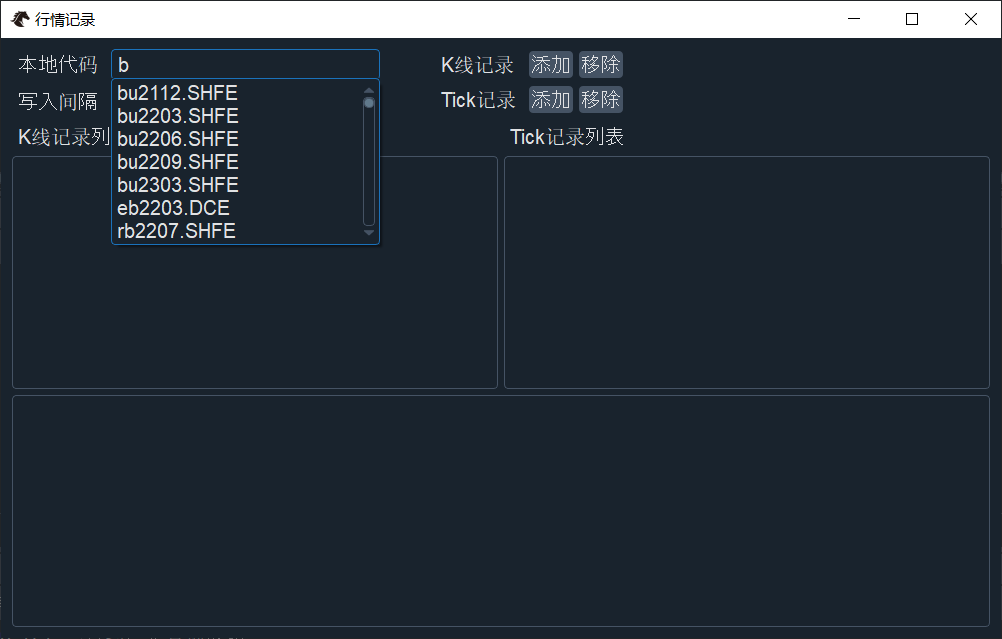 - 注意本地代码由代码前缀和交易所后缀两部分组成,如rb2112.SHFE; - 编辑框对于接口连接后收到的合约信息,提供自动补全功能(大小写敏感); 2. 在【写入间隔】编辑框中选择定时批量写入频率,如下图所示: 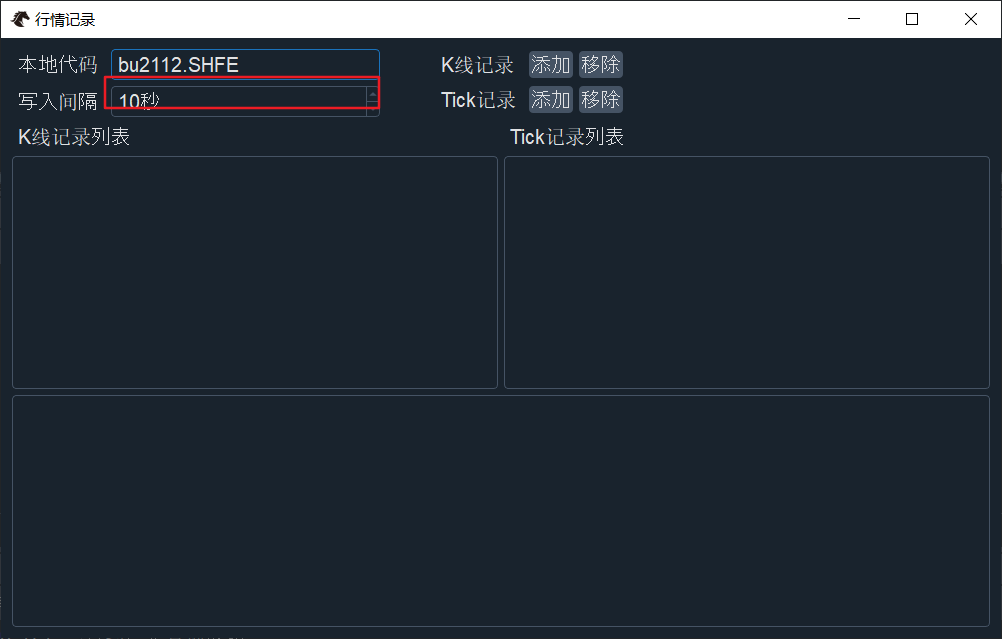 这样可以每次从队列中先取出所有待记录数据,再一次性把队列中已有数据写入数据库,从而降低数据库压力和记录延迟; 3. 点击右侧【K线记录】或者【Tick记录】对应的【添加】按钮添加录制任务: - 添加成功后,合约本地代码会出现在下方的【K线记录列表】或者【Tick记录列表】中,并在界面下方输出对应日志,如下图所示: 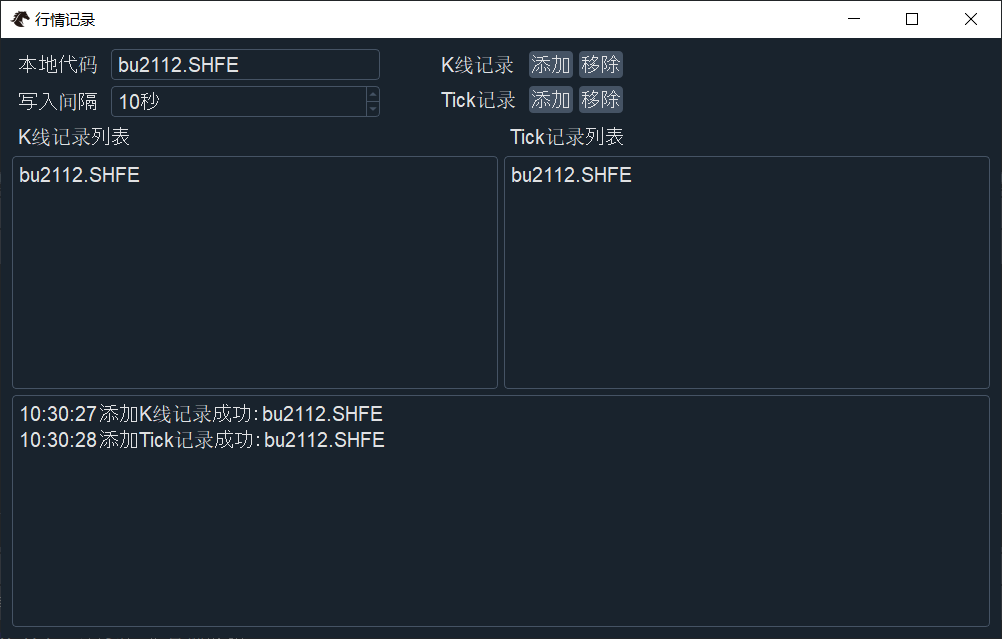 ## 移除记录 当不再需要记录某一合约的行情时,可以移除其对应的录制任务: 1. 在【本地代码】编辑框中输入需要移除录制任务的合约本地代码(vt_symbol); 2. 点击右侧【K线记录】或者【Tick记录】对应的【移除】按钮移除相应录制任务。 移除成功,【K线记录列表】或者【Tick记录列表】下对应的录制任务信息会被移除,并在界面下方输出对应日志,如下图所示: 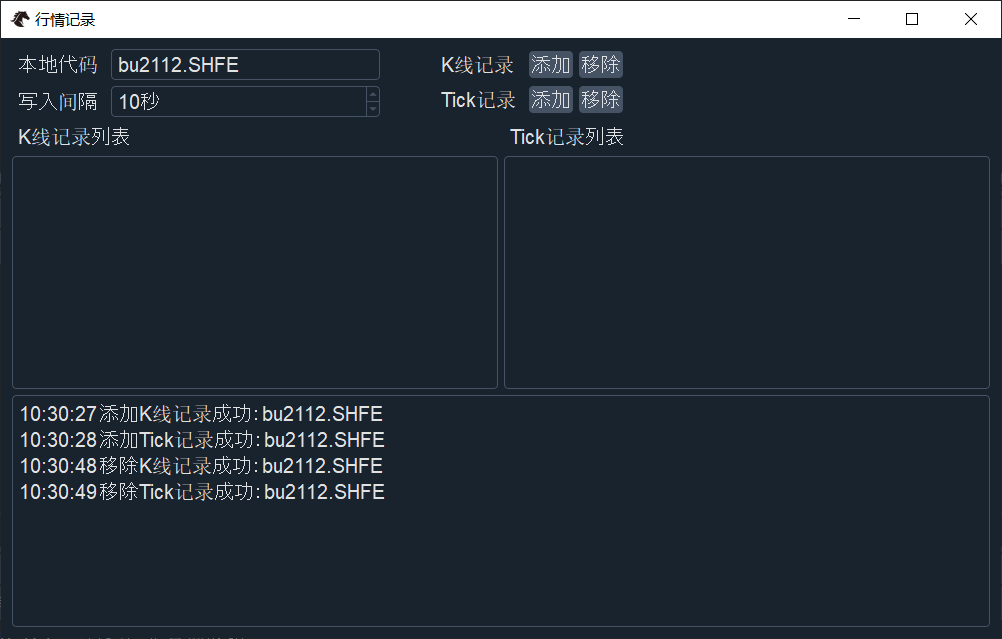
Shown in full with attribution under the source's licence. Licence: MIT
This summary was written by Stratmill's research agent from the original; it is not a copy of the source.